


How Model Context Protocol Turns Websites Into AI-Ready Platforms


The era of depending solely on an AI’s static training data has passed. For artificial intelligence to deliver real value in enterprise environments, it cannot rely only on outdated knowledge; it requires real-time, secure access to live business data.
Traditionally, integrating a Large Language Model (LLM) with private databases or websites required complex, fragile, and highly customized API connections. Today, this challenge has been effectively resolved through an advanced standard known as the Model Context Protocol (MCP).
In this blog, we will examine how implementing MCP enables organizations to seamlessly convert static websites or knowledge bases into dynamic, AI-ready platforms.
Summarize this article with ChatGPT
Get key takeaways & ask questions
What is the Model Context Protocol (MCP)?
Created by Anthropic, the Model Context Protocol (MCP) is an open-source standard designed to be the “USB-C port” for artificial intelligence.
Instead of building a unique integration for every single AI assistant, MCP provides a universal, standardized protocol. It operates on a Client-Server architecture:
- The Client: The AI application (like Claude Desktop) that needs information.
- The Server: A lightweight script you run locally or on your servers that securely exposes your data (files, databases, APIs, or website content) to the client.
MCP ensures that the AI never has direct, unrestricted access to your systems. Instead, the AI must politely ask your MCP server to execute specific, pre-defined tools to retrieve context.
Instead of relying on an AI assistant’s pre-existing, potentially outdated training data, we will build a local MCP server.
This server will act as a secure bridge, allowing a local AI client (Claude Desktop) to actively query a simulated live website database to provide perfectly accurate, company-specific support steps.
Role of MCP in Agent Workflows
When designing AI agents, managing context effectively is critical, and it typically spans three distinct layers:
- Transient interaction context: This includes the active prompt and any data retrieved during a single interaction. It is short-lived and cleared once the task is completed.
- Process-level context: This refers to information maintained across multi-step tasks, such as intermediate outputs, task states, or temporary working data.
- Persistent memory: This consists of long-term data, including user-specific details or workspace knowledge that the agent retains and leverages over time.
The Model Context Protocol (MCP) streamlines the handling of these context layers by:
- Enabling structured access to memory via standardized tools and resources, such as search and update operations or dedicated memory endpoints.
- Allowing multiple agents and systems to connect to a shared memory infrastructure, ensuring seamless context sharing and reuse.
- Establishing centralized governance through authentication, access controls, and auditing mechanisms to maintain security and consistency.
Without understanding the underlying architecture of memory, tool integration, and reasoning frameworks, you cannot effectively design systems that act independently or solve complex business problems.
If you want to build this foundational knowledge from scratch, the Building Intelligent AI Agents free course is a great starting point. This course helps you understand how to transition from basic prompt-response bots to intelligent agents, covering core concepts like reasoning engines, tool execution, and agentic workflows to enhance your practical development skills.
Let’s see exactly how to build this architecture from scratch.
Step-by-Step Implementation
Phase 1: Environment Provisioning
Before constructing the server, you must establish a proper development environment.
1. Integrated Development Environment (IDE): Download and install Visual Studio Code (VS Code). This will serve as our primary code editor.
2. Runtime Environment: Download and install the Node.js (LTS version). Node.js is the JavaScript runtime engine that will execute our server logic outside of a web browser.
Phase 2: Project Initialization & Security Configuration
Now, we are going to create a space on your computer for our project.
1. Open VS Code.
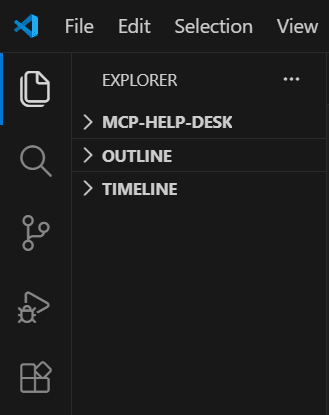
2. Create a Folder: Click on File > Open Folder (or Open on Mac). Create a new folder on your Desktop and name it mcp-help-desk. Select it and open it.
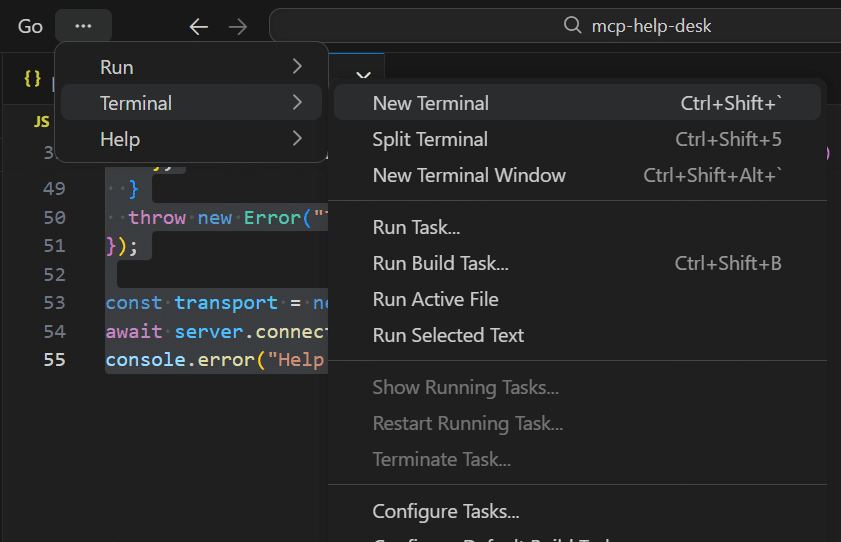
3. Open the Terminal: Inside VS Code, look at the top menu bar. Click Terminal > New Terminal. A little black box with text will pop up at the bottom of your screen. This is where we type commands.
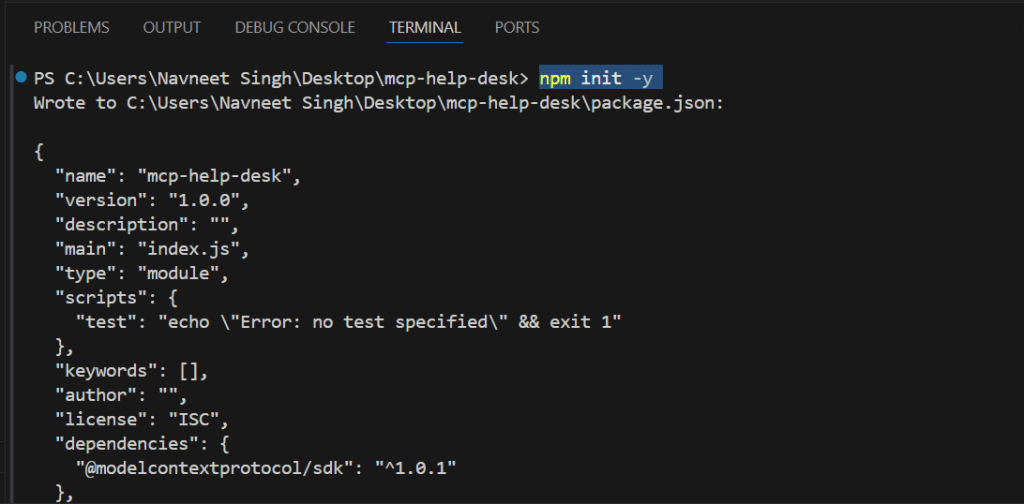
4. Initialize the Project: In that terminal at the bottom, type the following command and hit Enter: npm init -y (This creates a file called package.jsonon the left side of your screen. It keeps track of your project.)
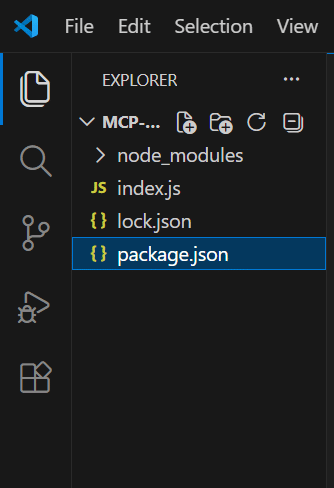
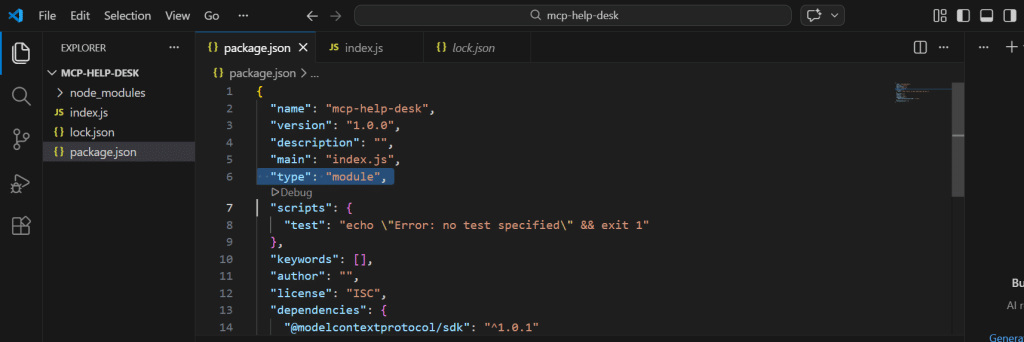
5. Enable Modern Code: Click on that new package.json file to open it. Add exactly “type”: “module”, around line 5, right under “main”: “index.js”,. Save the file (Ctrl+S or Cmd+S).
Note:
By default, Windows PowerShell restricts the execution of external scripts, which will block standard development commands and throw a red UnauthorizedAccesserror.
The Solution: In your terminal, execute the following command: Set-ExecutionPolicy RemoteSigned -Scope CurrentUser
Why Is This Necessary?
This command securely modifies the Windows execution policy for your specific user profile, granting permission to run locally authored developer scripts and essential package managers without compromising overarching system security.
Phase 3: Dependency Management & Modern JavaScript Configuration
Modern JavaScript development utilizes ES Modules (the import syntax), but Node.js defaults to older standards (require). Attempting to run modern MCP SDK code without configuring this will result in a fatal SyntaxError.
- Open the newly created package.json file in VS Code.
- Replace its entire contents with the following configuration:
{

  "name": "mcp-help-desk",

  "version": "1.0.0",

  "description": "My first AI-ready Help Desk",

  "main": "index.js",

  "type": "module",

  "scripts": {

    "test": "echo \"Error: no test specified\" && exit 1"

  },

  "keywords": [],

  "author": "",

  "license": "ISC",

  "dependencies": {

    "@modelcontextprotocol/sdk": "^1.0.1"

  }

}
Why This Code Is Necessary?
“type”: “module” is the critical addition. It explicitly instructs the Node.js runtime to parse your JavaScript files using modern ES Module standards, preventing import errors. “dependencies” declares the exact external libraries required for the project to function.
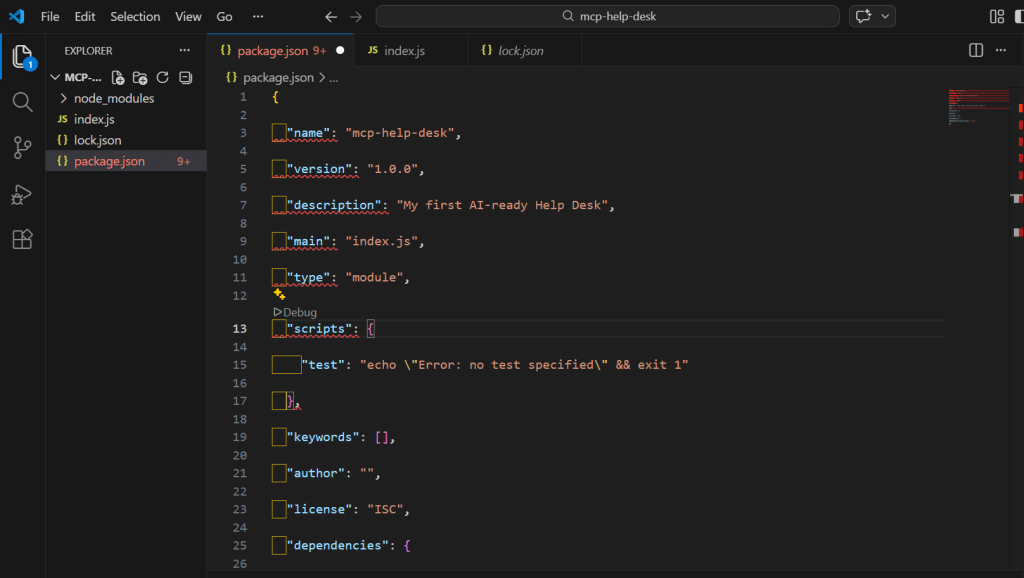
3. Save the file (Ctrl + S).
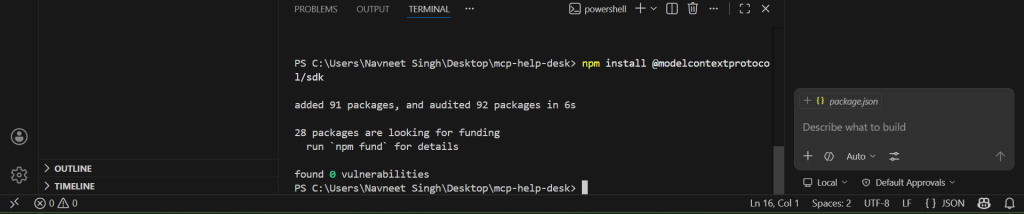
4. Install the SDK: In your terminal, run npm install @modelcontextprotocol/sdk. This downloads the official tools required to establish the AI communication bridge.
Phase 4: Architecting the MCP Server (Core Logic)
This is where we map our website data to the AI.
1. On the left side of VS Code, right-click in the empty space under package.json and select New File. Name it exactly index.js.
2. Open index.js and paste this code. (Note: We use console.error at the bottom instead of console.log so we don’t accidentally confuse the MCP communication pipeline!)
import { Server } from "@modelcontextprotocol/sdk/server/index.js";

import { StdioServerTransport } from "@modelcontextprotocol/sdk/server/stdio.js";

import { ListToolsRequestSchema, CallToolRequestSchema } from "@modelcontextprotocol/sdk/types.js";

// 1. Server Initialization

const server = new Server({

  name: "help-desk-knowledge-base",

  version: "1.0.0"

}, {

  capabilities: { tools: {} }

});

// 2. Simulated Database Integration

const fakeWebsiteDatabase = {

  "password": "Here are the steps to share with your customer for a lost password:\n1. Go to Settings in their account.\n2. Click 'Forgot Password' to initiate the reset process.",

  "billing": "To update your credit card, visit the Billing portal in your dashboard.",

};

// 3. Tool Definition (The AI's Menu)

server.setRequestHandler(ListToolsRequestSchema, async () => {

  return {

    tools: [{

      name: "search_articles",

      description: "Search the website help desk for articles.",

      inputSchema: {

        type: "object",

        properties: {

          keyword: { type: "string", description: "The keyword to search for, like 'password' or 'billing'" }

        },

        required: ["keyword"]

      }

    }]

  };

});

// 4. Request Handling & Execution Logic

server.setRequestHandler(CallToolRequestSchema, async (request) => {

  if (request.params.name === "search_articles") {

    // Robust parameter extraction to prevent undefined errors

    const args = request.params.arguments || {};

    const keyword = String(args.keyword || "").toLowerCase();

    // Substring matching for flexible AI queries (e.g., "password reset" matches "password")

    let articleText = "No article found for that topic.";

    if (keyword.includes("password")) {

      articleText = fakeWebsiteDatabase["password"];

    } else if (keyword.includes("billing")) {

      articleText = fakeWebsiteDatabase["billing"];

    }

    return {

      content: [{ type: "text", text: articleText }]

    };

  }

  throw new Error("Tool not found");

});

// 5. Transport Activation

const transport = new StdioServerTransport();

await server.connect(transport);

console.error("Help Desk MCP Server is running!");
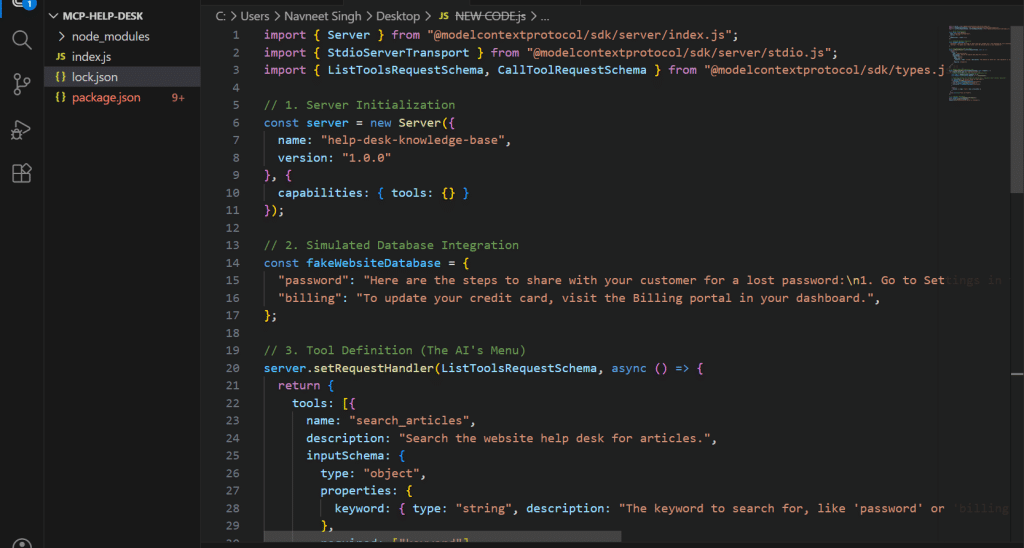
Code Breakdown?
- Imports: These pull in the standardized MCP communication protocols. By utilizing these, we avoid writing complex, low-level network security logic from scratch.
- Server Initialization: Defines the identity of your server, ensuring the AI client knows exactly which system it is interfacing with.
- Simulated Database: In a production environment, this would be an API call to your company’s SQL database or CMS. Here, it acts as our structured data source.
- Tool Definition (ListToolsRequestSchema): AI models do not inherently know what actions they can take. This code creates a strict operational schema. It tells the AI: “I possess a tool named search_articles. To execute it, you must provide a string variable labeled keyword.”
- Request Handling (CallToolRequestSchema): This is the execution phase. When the AI attempts to use the tool, this logic intercepts the request, safely sanitizes the input, queries the database utilizing flexible substring matching (preventing logical errors if the AI searches “password reset” instead of “password”), and securely returns the text.
- Transport Activation: This establishes a Standard Input/Output (stdio) pipeline, the secure, physical communication channel between the AI application and your Node.js runtime. (Note: We use console.error for our startup message to ensure it does not corrupt the hidden JSON messages passing through the primary stdio stream).
3. Press Ctrl + S to save the file.
Phase 5: Local Validation via the MCP Inspector Web UI
Before integrating a consumer-facing AI like Claude, we must validate that our server logic works perfectly. To do this, we will use the MCP Inspector, an official debugging utility that creates a temporary, interactive web page on your local machine to simulate an AI connection.
1. Launch the Inspector: Terminate any running processes in your VS Code terminal. Execute the following command: npx @modelcontextprotocol/inspector node index.js (Type y and press Enter if prompted to authorize the package installation).
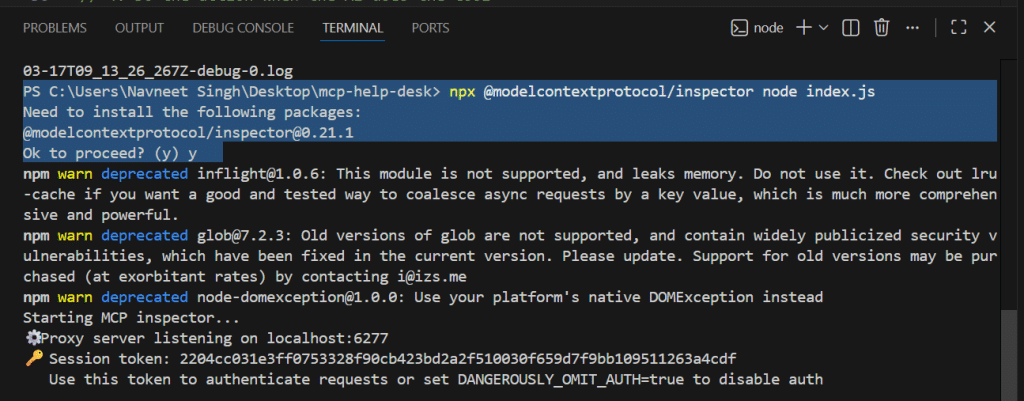
2. Open the Web Interface: The terminal will process the command and output a local web address (e.g., http://localhost:6274). Hold Ctrl (or Cmd on Mac) and click this link to open it in your web browser.
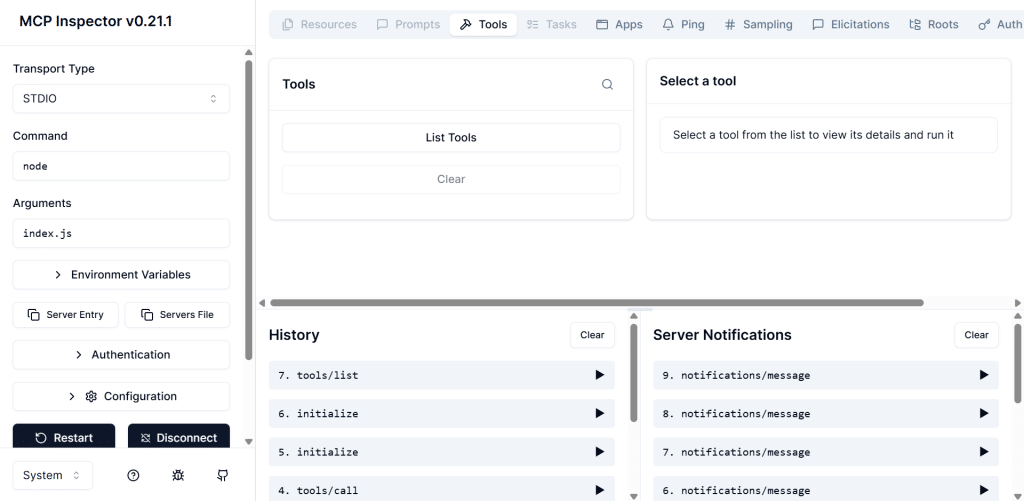
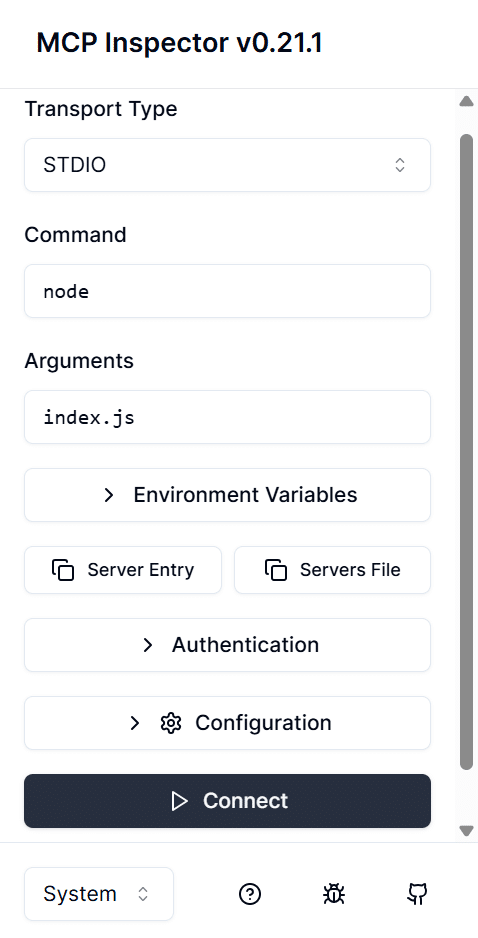
3. Connect the Server: You will now be looking at the Inspector’s live webpage interface. Click the prominent Connect button. This establishes the stdio pipeline between this web page and your VS Code background script.
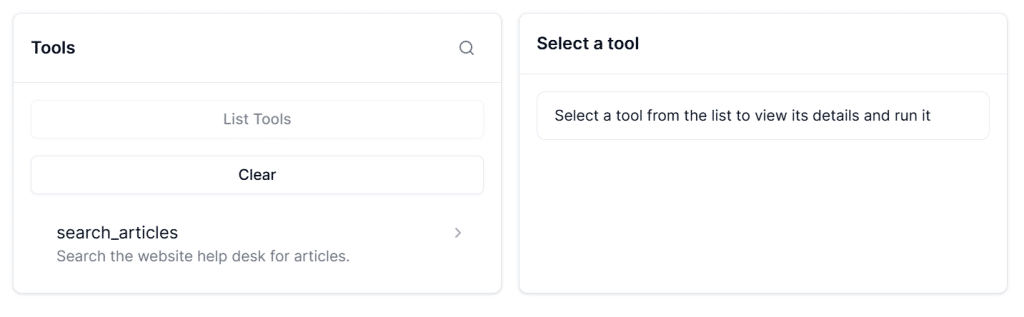
4. Locate the Tools Menu: Once connected, look at the left-hand navigation menu. Click on the Tools section. You will see your search_articles tool listed there, exactly as you defined it in your schema!
5. Execute a Test Run: Click on the search_articles tool. An input box will appear asking for the required “keyword” parameter.
- Type “password” into the box.
- Click the Run Tool button.
6. Verify the Output: On the right side of the screen, you will see a JSON response pop up containing your simulated database text: “To reset your password, go to settings and click ‘Forgot Password”
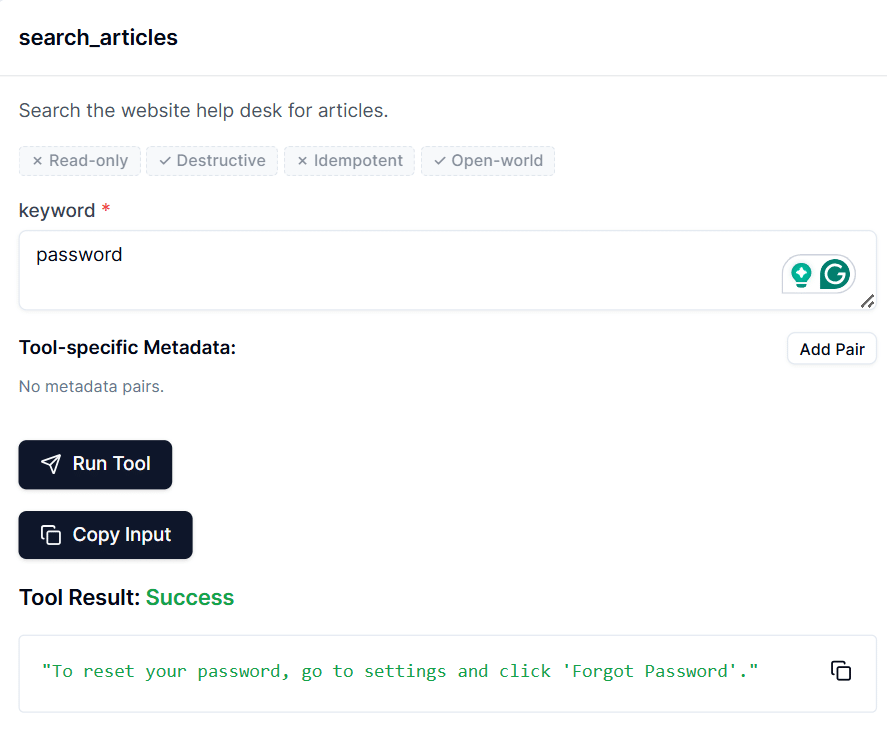
Why is this step strictly necessary?
Debugging an AI connection inside Claude Desktop is like working blindfolded; if it fails, Claude often cannot tell you exactly why. The MCP Inspector provides a transparent, visual sandbox.
By clicking “Connect” and manually running the tool here, you completely isolate your Node.js code from Anthropic’s cloud servers. If it works on this webpage, you know with 100% certainty that your local architecture is flawless.
Phase 6: Client Integration & Configuration Routing
With validation complete, we will now map the Anthropic Claude Desktop client directly to your local server.
1. Ensure Claude Desktop is installed.
2. Terminate the MCP inspector in VS Code by clicking the Trash Can icon in the terminal.
3. Open the Windows Run dialog (Windows Key + R), type %APPDATA%\Claude, and press OK.
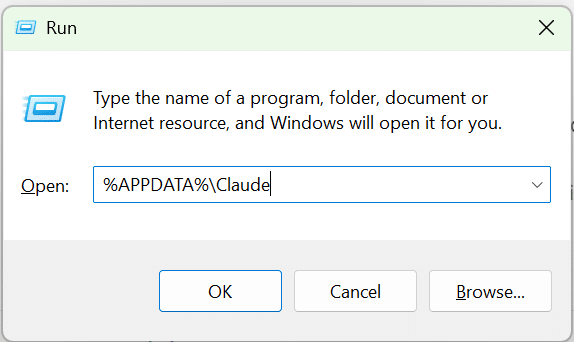
4. Resolving the “Hidden Extension” Trap: Windows natively conceals file extensions, often leading developers to accidentally create files named config.json.txt, which the system will ignore.
The Fix: Click the View tab in the Windows Explorer ribbon -> Show -> and ensure File name extensions are checked.
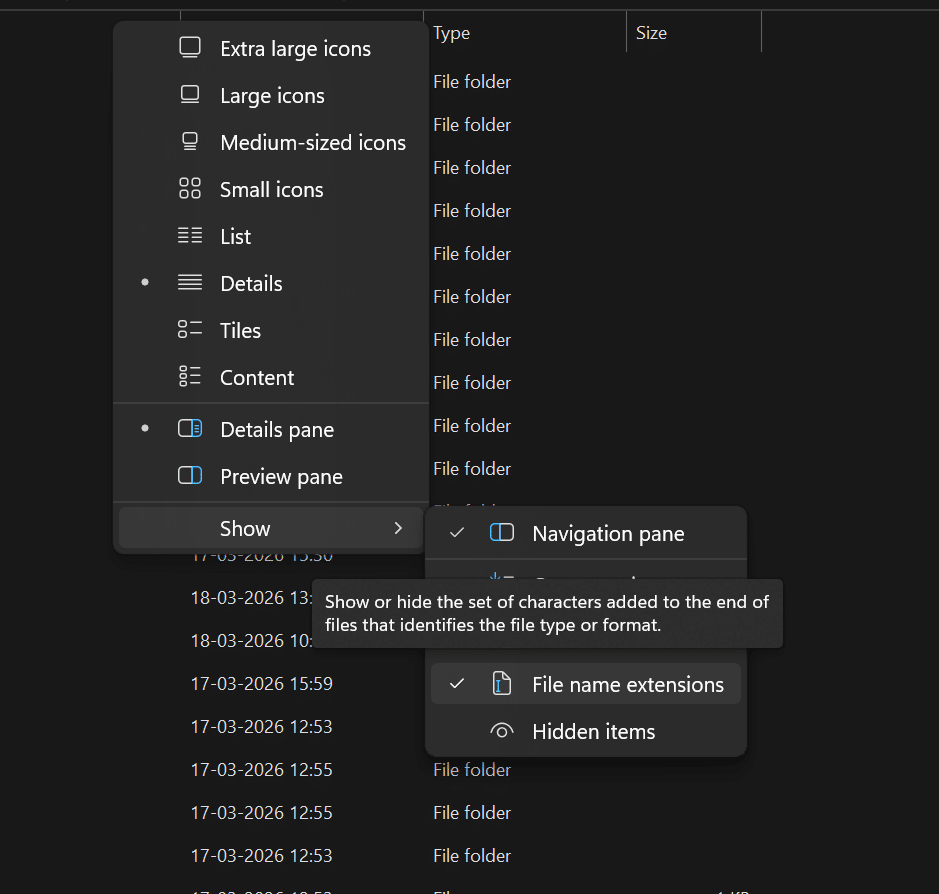
5. Create a new file in this directory named claude_desktop_config.json.
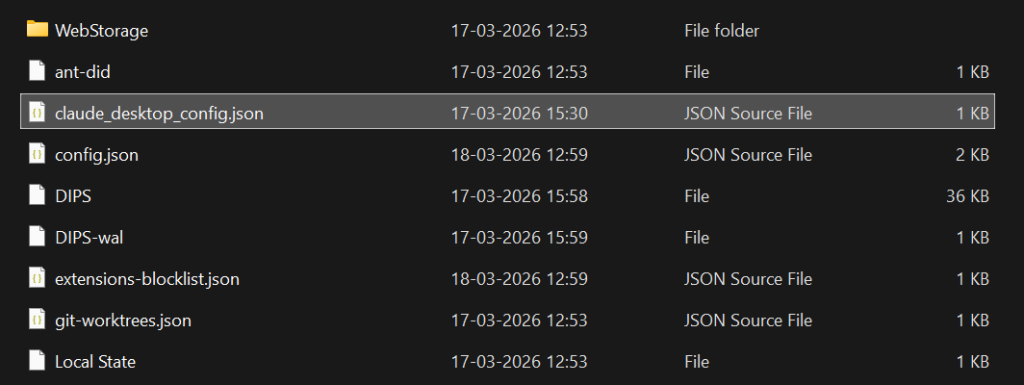
6. Open the file in a Notepad and insert the following routing map (replace YourUsername with your actual Windows directory path):
{

  "mcpServers": {

    "help-desk-knowledge-base": {

      "command": "node",

      "args": [

        "C:\\Users\\YourUsername\\Desktop\\mcp-help-desk\\index.js"

      ]

    }

  }

}
Why is this code necessary?
Claude Desktop operates within a secure sandbox and cannot arbitrarily access local directories. This JSON configuration file acts as explicit authorization. It dictates: “Upon startup, utilize the system’s nodecommand to silently execute the specific index.jsfile located at this exact file path.”
7. Forced Application Restart: To ensure Claude reads the new configuration, open the Windows Task Manager, locate the Claude application, and click End Task.
Phase 7: Final Execution & Cloud Latency Considerations
1. Launch Claude Desktop- Initiate a new chat and enter the prompt: “A customer lost their password. What steps should I give them based on our knowledge base?”
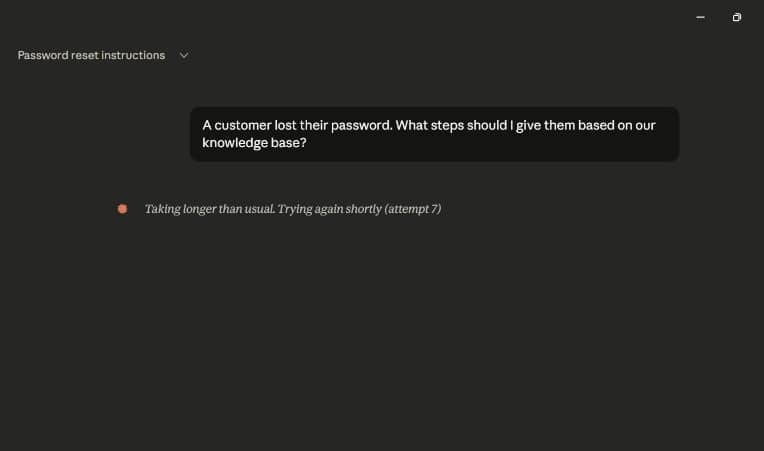
Claude will prompt you for authorization to access the local tool. Upon granting permission, it will autonomously route the query to your Node.js server, fetch the data, and format it into a human-readable response.
A Note on Cloud Latency: During execution, you may occasionally see Claude display “Taking longer than usual (attempt 6)…”. It is crucial to understand that this is not a failure of your local code. Your MCP server processes local requests in milliseconds.
However, once Claude retrieves that data, it must send it to Anthropic’s cloud API to generate the final conversational output. If their global servers are experiencing heavy traffic, the API will timeout and retry. If you encounter this, your architecture is functioning perfectly; you simply must wait for cloud traffic to normalize.
The Final Output
Once the cloud traffic clears and Claude successfully processes the local data, you will witness the true power of the Model Context Protocol. Claude will present a response that looks exactly like this:
Search articles >
Here are the steps to share with your customer for a lost password:
- Go to Settings in their account.
- Click “Forgot Password” to initiate the reset process.
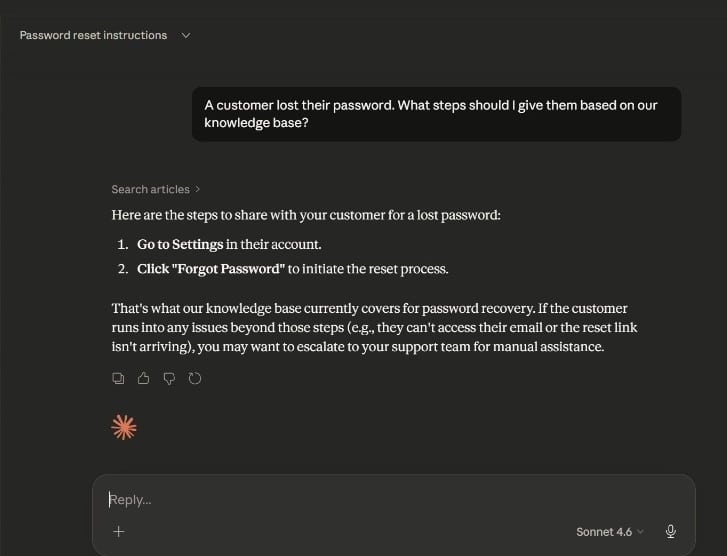
That’s what our knowledge base currently covers for password recovery. If the customer runs into any issues beyond those steps (e.g., they can’t access their email or the reset link isn’t arriving), you may want to escalate to your support team for manual assistance.
Look closely at the AI’s response. It did not guess the password reset steps, nor did it hallucinate a generic response based on its broad internet training data. Instead, you can see the explicit Search articles > badge above the text.
This badge proves that the AI recognized its own knowledge gap, reached out of its secure sandbox, traversed the stdio pipeline into your local Windows environment, executed your index.js script, searched the simulated database for the “password” keyword, and extracted your exact, hardcoded text. It then wrapped your company’s proprietary data into a conversational, and highly contextual response.
You have successfully replaced AI hallucinations with grounded, deterministic, enterprise-grade truth. Your local machine is now a fully functional, AI-ready platform.
Next Step: Elevate Your Skills in Agentic AI
You have just built your first MCP server and witnessed how AI agents can autonomously solve problems using your data. If you are ready to move beyond foundational tutorials and formally master these high-growth skills for enterprise applications, the Post Graduate Program in AI Agents for Business Applications is the ideal next step.
Delivered by Texas McCombs (The University of Texas at Austin) in collaboration with Great Learning, this 12-week program enables learners to understand AI fundamentals, build Agentic AI workflows, apply GenAI, LLMs, and RAG for productivity, and develop intelligent systems to solve business problems through scalable, efficient automation.
Why This Program Will Transform Your Career:
- Master High-Demand Technologies: Gain deep expertise in Generative AI, Large Language Models (LLMs), Prompt Engineering, Retrieval-Augmented Generation (RAG), the MCP Framework, and Multi-Agent Systems.
- Flexible Learning Paths: Choose the track that fits your background, dive into a Python-based coding track or leverage a no-code, tools-based track.
- Build a Practical Portfolio: Move beyond theory by completing 15+ real-world case studies and hands-on projects, such as building an Intelligent Document Processing System for a legal firm or a Financial Research Analyst Agent.
- Learn from the Best: Receive guidance through live masterclasses with renowned Texas McCombs faculty and weekly mentor-led sessions with industry experts.
- Earn Recognized Credentials: Upon completion, you will earn a globally recognized certificate from a top U.S. university, validating your ability to design and secure intelligent, context-aware AI ecosystems.
Whether you want to automate complex workflows, enhance decision-making, or lead your team’s AI transformation, this program equips you with the exact tools and reasoning strategies to build the future of business intelligence.
Conclusion
By bridging the gap between static web content and active AI agents, the Model Context Protocol fundamentally shifts how we interact with data.
As demonstrated in this guide, you no longer have to hope an AI has learned your company’s processes; you can simply give it a direct, secure pipeline to read them in real-time.
By implementing an MCP server, you turn your standard website, database, or knowledge base into a living, AI-ready platform empowering LLMs to act not just as conversationalists, but as highly accurate, context-aware agents working directly on your behalf.




![How to Explain Reasons for Job Change in Interviews? [2024]](https://metaailabs.com/wp-content/uploads/2024/04/How-to-Explain-Reasons-for-Job-Change-in-Interviews-2024.png)